Links are everything
links
Links are the most important core feature of Obsidian.
how do we link?
We link to another note or even a specific heading in a note, first by typing two square brackets
[[
- This will automatically create the corresponding brackets for you and then show an auto-complete menu as you type the name of a note
[[links example 2]]
Tips
- You can customize the appearance of links by creating CSS code snippets or by installing one of the many community made themes.
- hovering over a link while holding ctrl(cmd on mac) will display a hovering preview of the linked content.
- clicking while holding the same modifier will open that content in a new tab.
You can also link to specific headings inside the note by placing a # symbol after the filename followed by the title of the heading
[[links example 2#sub-heading-1|Sub heading 1]]
Linked notes or headings can also be embedded in the current note by preceeding the opening brackets with an exclamation point
![[links example 2#heading-1|heading 1]]
heading 1
The quick brown fox
Sub heading 1
Some content here
Link to original
![[links example 2#sub-heading-2|sub heading 2]]
sub heading 2
Other content
Link to original
Tip
All of these are available through the command pallete and can be assigned to shortcut keys or to clickable buttons on the interface using a plugin
You can also link or embed image files or drag them directly onto your note. It uses the same syntax as linking to any other file.
![[Pasted image 20230211160529.png]]
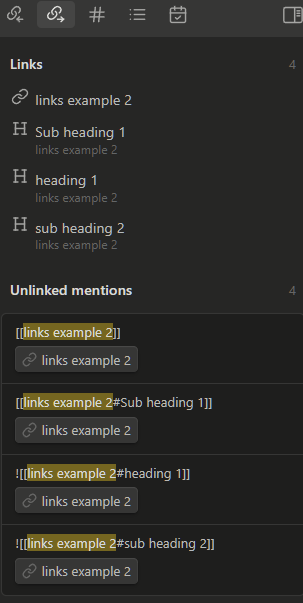
This is an image of the “outgoing links” panel that is in the top right of Obsidian’s interface by default. You may be able to see that it shows unlinked mentions of the names of other notes. This can be an incredibly useful tool for linking notes without having to remember to do so. There is also a plugin that will do this as you type and suggest links to you.
It is also easy to link to external websites that will open links in your web browser. These are done more like traditional markdown. with a single set of brackets and parenthesis.
[Google](https://google.com)
- you can see that external links always have a signifying econ next to them that indicates they will open an external application
moving on
Lets see what is in the templates and templater note